Microsoft Entra ID
Use Microsoft Entra ID as a User Source so the people who already sign in with their Microsoft work or school account can sign in to your MCP Gateways. This guide walks you through what to do in the Microsoft Entra admin center. Once you have the values it tells you to copy, create the User Source in Arcade.
Before you start
- An account with one of these roles in your Microsoft Entra tenant: Cloud Application Administrator or Application Administrator.
- An Arcade project where you’ll create the User Source.
Register an app in Microsoft Entra ID
Open the Entra admin center
Sign in to the Microsoft Entra admin center with one of the roles listed above.
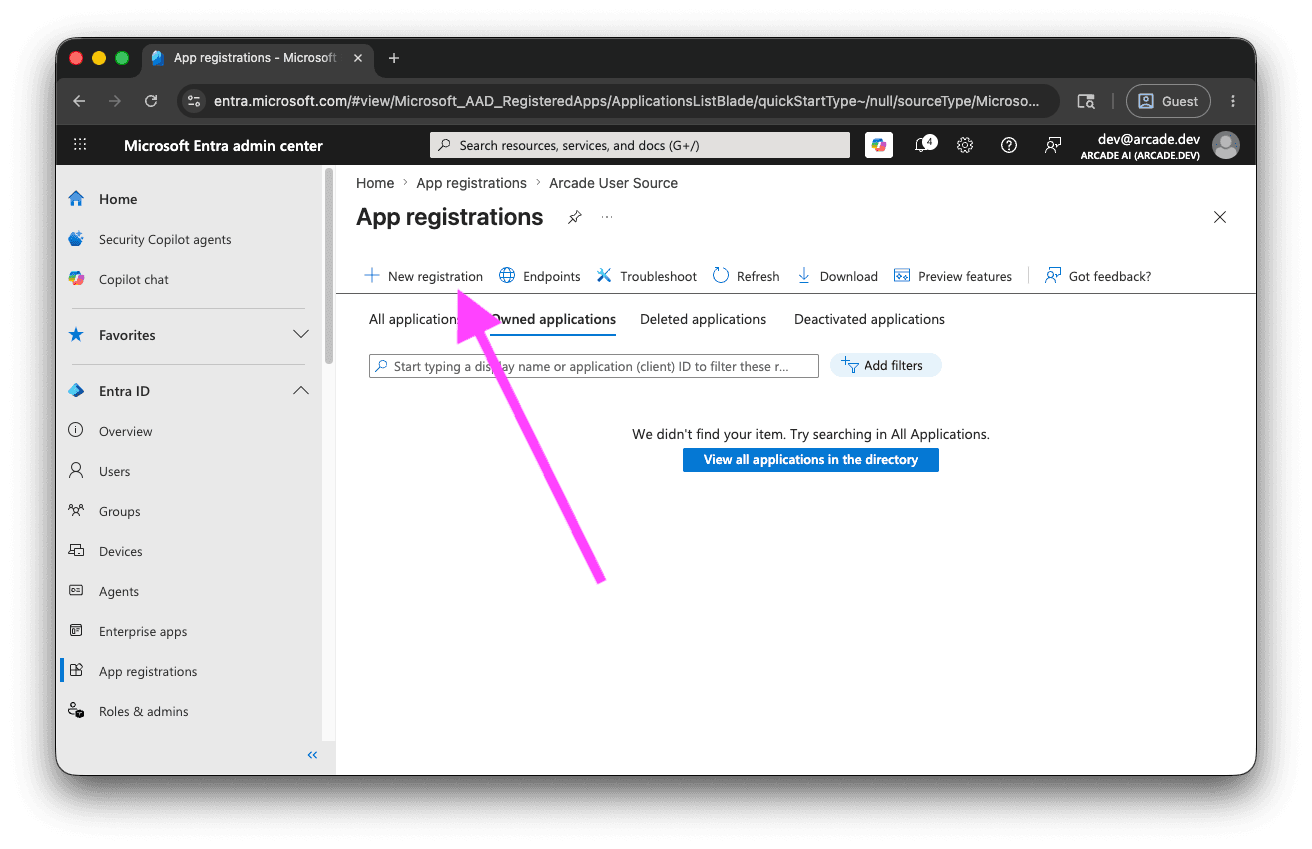
Go to Entra ID → App registrations → New registration.
Name the app and choose who can sign in
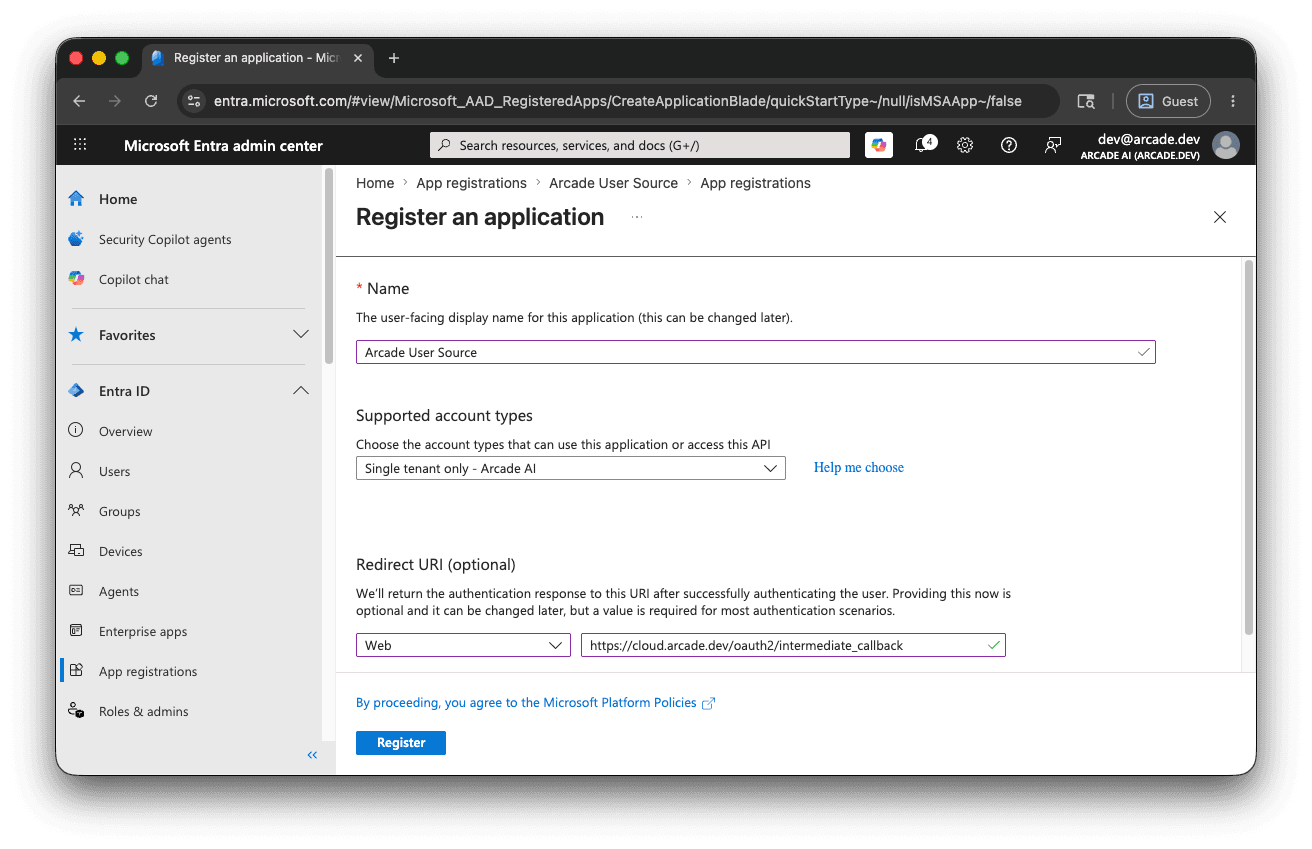
Give the app a name your team will recognize, for example Arcade MCP Gateways.
Under Supported account types, pick Single tenant only — your tenant name. This is the only account type Arcade supports today — see the Notes below for details on the other options.
Add the Arcade redirect URL
In the Redirect URI section, select the Web platform and paste this URL:
https://cloud.arcade.dev/oauth2/intermediate_callback
Click Register. Entra creates the app and opens its Overview page.
Create a client secret
In the new app’s left menu, go to Certificates & secrets → Client secrets → New client secret.
Add a description (for example, Arcade User Source) and pick an expiration period. Click Add.
Copy the Value column immediately and keep it somewhere safe—Entra hides it as soon as you leave the page. You’ll paste this into Arcade as the Client Secret.
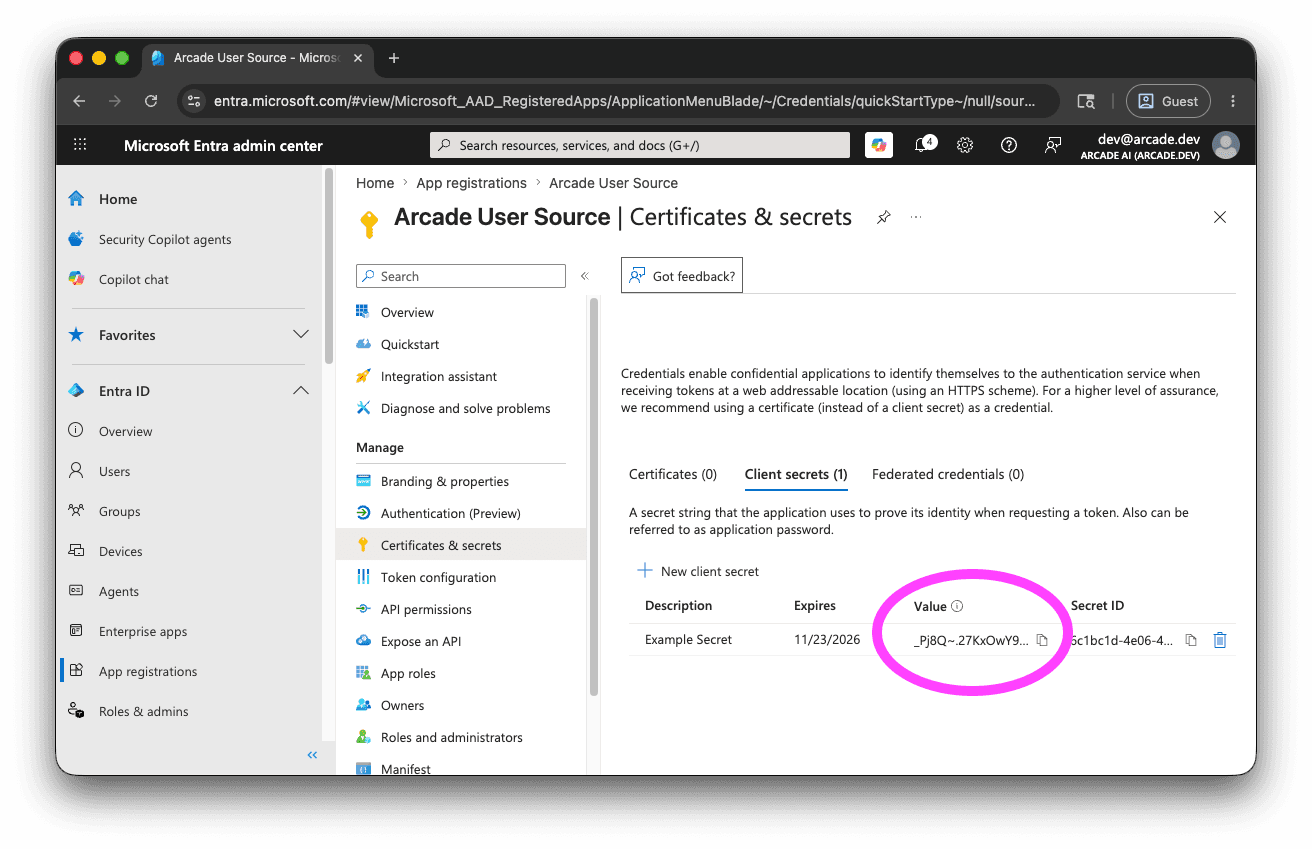
Arcade currently supports client secrets only, not certificate credentials.
Grant the OIDC permissions
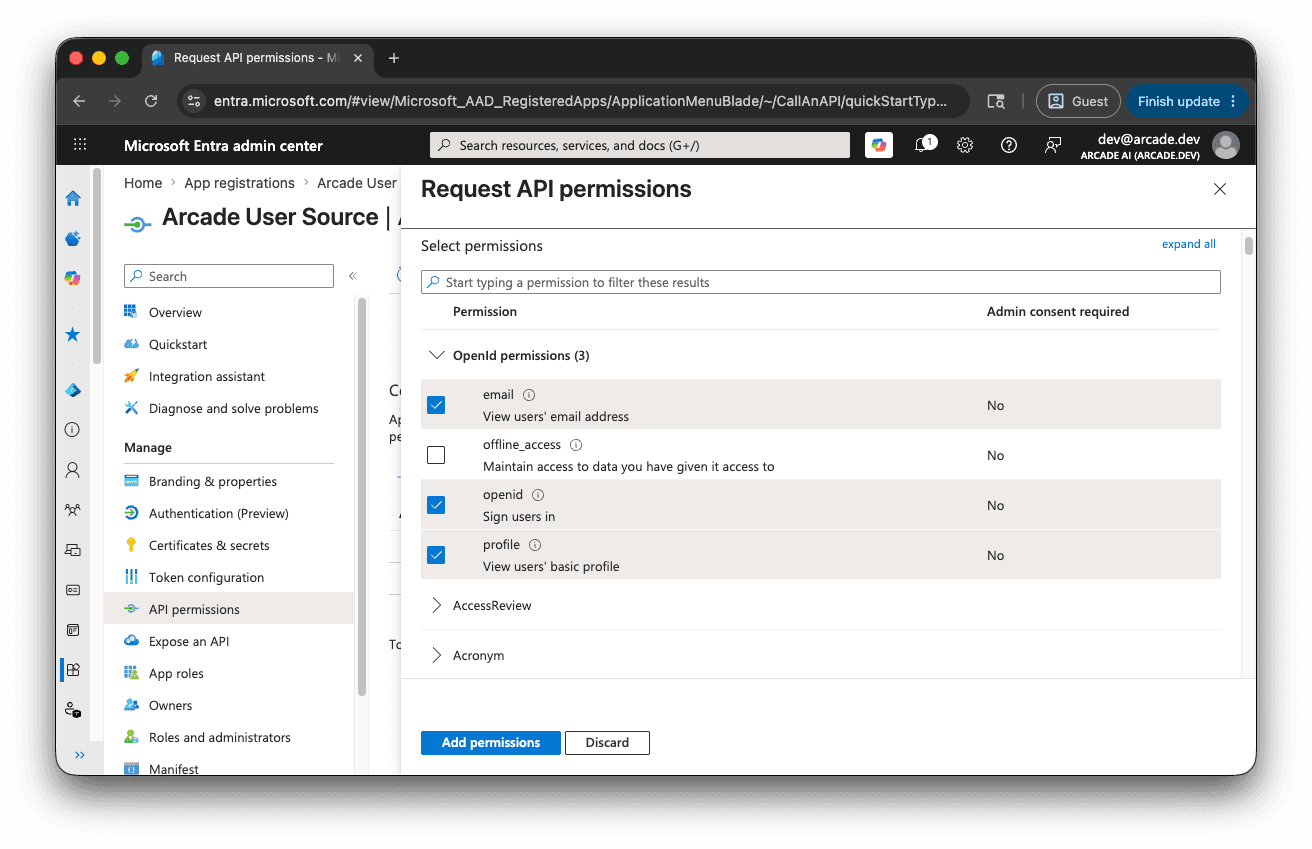
In the app’s left menu, go to API permissions.
Microsoft adds User.Read for you by default; leave it alone. Then click Add a permission → Microsoft Graph → Delegated permissions and check openid, profile, and email. Click Add permissions.
These three are the OIDC scopes Arcade requests by default. Granting profile is what unlocks Entra’s directory-wide user identifier, which appears again in the optional oid configuration below. Without profile, Entra omits that claim from the ID token regardless of any other configuration.
Copy these values to Arcade
Open the app’s Overview page in Entra and copy these values into Arcade’s User Source form:
| Arcade field | Where to find it in Entra ID |
|---|---|
| Issuer URL | https://login.microsoftonline.com/{tenant-id}/v2.0. {tenant-id} is the Directory (tenant) ID field on the app’s Overview page. |
| Client ID | The Application (client) ID field on the app’s Overview page. |
| Client Secret | The value you copied earlier when you created the client secret. It is not shown anywhere after creation, so use the value you saved rather than going back to the Overview page for it. |
Leave Arcade’s other defaults alone for a standard Entra setup. See Optional: use oid as the subject claim below if you’d rather have Arcade identify users by their Entra directory ID instead of the per-app default.
Create the User Source in Arcade
Open the Arcade Dashboard, select your project, navigate to User Sources, and click Create User Source. Paste the values from the table above. For a walkthrough of the form, see Create a User Source in the User Sources overview.
Once the User Source is active, attach it to an MCP Gateway by following Create via Dashboard and picking User Source under “Non-Arcade Users” in the gateway form.
Optional: use oid as the subject claim
The default Subject Claim is sub. Entra issues sub as an opaque, per-application identifier, which suits most setups.
To identify users by their directory-wide identifier instead, open the form’s Advanced section and set Subject Claim to oid. The oid claim makes auditing against your Entra directory more straightforward and lets you correlate the same user across multiple User Sources.
Entra only emits oid when profile is in the requested scopes. You granted the profile permission in the step above, and profile belongs to Arcade’s default scope set, so no further changes apply.
Notes
- Multi-tenant and personal-account options aren’t supported today: Arcade matches the OIDC
issclaim on every ID token byte-for-byte against the issuer URL you save on the User Source. The Multiple Entra ID tenants, Any Entra ID Tenant + Personal Microsoft accounts, and Personal accounts only options all rely on Entra issuing tokens whoseissreflects the signing-in user’s home tenant, so there’s no single issuer URL that will validate for users from more than one tenant. If you need to onboard users from multiple Entra tenants today, create a separate Arcade User Source per tenant. - PKCE: Arcade always uses PKCE when authenticating end users. Entra ID accepts PKCE automatically on the Web platform, so you don’t need to change any Entra setting.
- Client secret rotation: Entra client secrets expire. Rotate yours before the expiration date. See Rotate the client secret in the User Sources guide for how.
- Custom subject claims: If neither
subnoroidfits, you can configure a different value as an optional claim on Entra’s ID token, then set the User Source’s Subject Claim to its name. Arcade only reads ID tokens, so the claim must be on the ID token specifically (not the access token). See Advanced: scopes and subject claim in the overview for what makes a good claim.